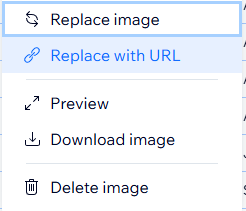
There’s no need to use a text field for this, nor does the image specifically have to be a Wix Media image. Any external image can be linked to your image field using it’s URL, and it should work just fine and show up on your dynamic pages as expected.
But Google Drive doesn’t directly provide a properly linked URL to a file stored on it, so you need to edit the shared URL yourself in order for the file to display outside of Google Drive.
All you need to do is simply use this URL format:
https://lh3.googleusercontent.com/d/FILE_ID
The file ID of the example image that you provided is: 13OTMmZUugM90DszuFhqjibiRGUqnXS1D
So before adding it to the CMS, simply change your URL to: https://lh3.googleusercontent.com/d/13OTMmZUugM90DszuFhqjibiRGUqnXS1D
Apparently you can use lh4 to lh6 as well
And that’s it. Your image will now show up in the CMS and on your site’s dynamic pages.
Remember - the file is still hosted on your Google Drive, so make sure that the image file you want is shared as “Anyone with the link” or “Public on the web” and then grab the file ID from the sharing link that is located between /d/ and /view
Using this method, if you want to generate thumbnail images or fetch the image in a sepcifc size, you can do so by simply adding the desired width and height at the end of the URL, for example =w100-h100
e.g:
https://lh3.googleusercontent.com/d/13OTMmZUugM90DszuFhqjibiRGUqnXS1D=w100-h100
which will return a 100x100 image. You can just use “w” or “h” on their own, aspect ratio should be maintained.
For this, you can write code inside a data hook that triggers whenever a new item is added to the CMS, and have the code automatically convert the sharing URL to the display URL, thus saving you time.